How to Add a Shopify Logout Button (Step-by-Step)
Shopify order pages often miss a clear logout. Here is the liquid code and placement to add a functional logout button for better customer UX.

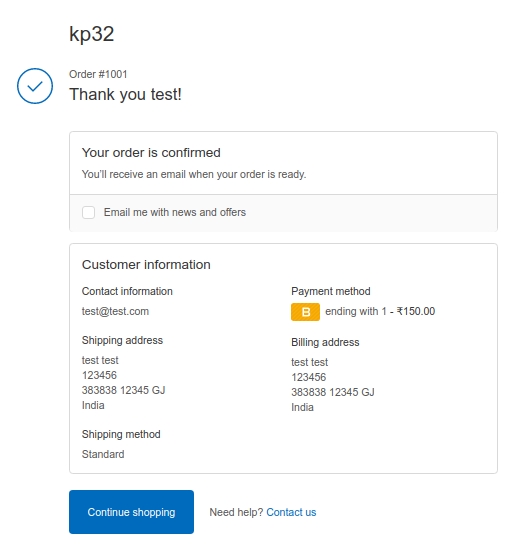
By default, Shopify doesn’t provide a Logout button after a customer completes their purchase. After the checkout process, users see the Order Status page with only one action button — “Continue Shopping”. From a user experience point of view, it would be better if customers could also log out after completing their order.
The default Shopify Order Status page looks like this:
Access the “Additional Scripts” Section in Shopify Admin
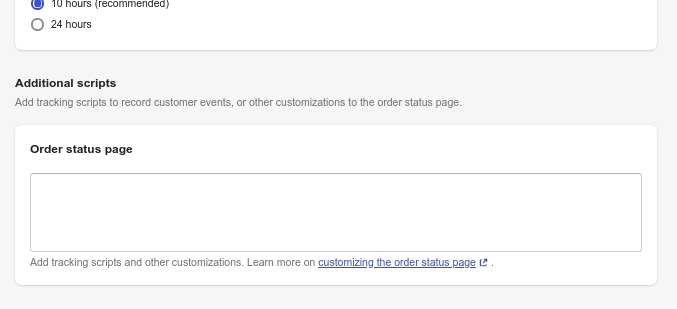
Shopify allows you to add custom content on the Order Status page using the Additional scripts field found under the Checkout settings. Follow these steps to add your Logout button:
- Log in to your Shopify Admin panel.
- Click on Settings from the left sidebar.

- Select Checkout from the settings list.
- Scroll down to the Additional scripts section under Order Status Page.
Option 1: Add a Basic Logout Button
In the Order status page field, add the following line of code and click Save:
<!-- ============ Logout button on order status page START ========== -->
<a href="{{ shop.url }}/account/logout" class="btn" style="margin-top:1em">Logout</a>
<!-- ============ Logout button on order status page END ========== -->
Once saved, you’ll see a Logout button on the Order Status page like this:

However, this button appears just below the username at the top, which isn’t the best user experience.
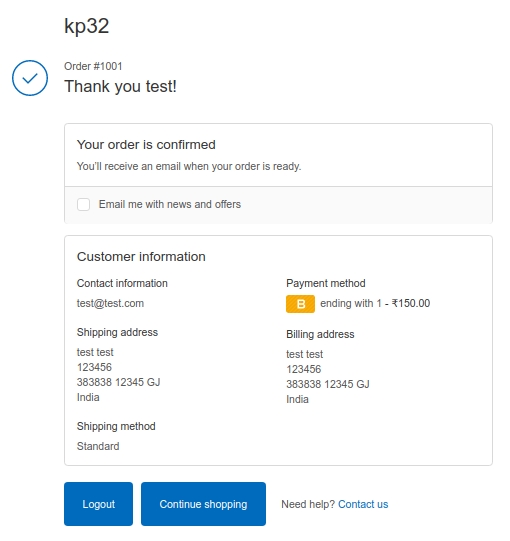
Option 2: Move Logout Button Beside the “Continue Shopping” Button
To make the Logout button appear next to the Continue Shopping button, replace the previous code with this script:
<!-- ============ Logout button on order status page START ========== -->
<script>
window.addEventListener('load', function() {
  var customLogoutLink    = document.createElement('a');
  customLogoutLink.text   = 'Logout';
  customLogoutLink.href   = "{{ shop.url }}/account/logout";
  customLogoutLink.classList.add("step__footer__continue-btn");
  customLogoutLink.classList.add("btn");
  customLogoutLink.setAttribute("style", "margin-right: 10px;");
  var continueShoppingBtn = document.getElementsByClassName('step__footer')[0];
  continueShoppingBtn.insertBefore(customLogoutLink, continueShoppingBtn.firstChild);
});
</script>
<!-- ============ Logout button on order status page END ========== -->
After saving and refreshing your Order Status page, it should look like this:
Notes and Compatibility
- This code works perfectly with Shopify’s default free themes.
- If you’re using a paid or custom theme, you may need to tweak the
classListselectors to match your theme’s structure. - Always test changes on a test order before deploying live.
Conclusion
With just a few lines of code, you can easily add a Logout button on your Shopify Order Status page and improve post-purchase user experience. It’s a small but useful customization for stores where multiple customers might use the same device.
If you face any issue implementing this, feel free to reach out via email: info[at]php-dev-zone.com
FAQs
Can I add this Logout button on other Shopify pages?
Yes, but you’ll need to modify your theme files (for example, customers/account.liquid) instead of using the Additional Scripts field.
Does this work with Shopify Plus checkout?
Yes, Shopify Plus also supports the Additional Scripts field, so this method works fine there too.
Will it affect checkout performance?
No, this is a small client-side script that doesn’t affect performance or checkout flow.

Ketan Patel
PHP & MySQL Performance Optimization Specialist
I specialize in diagnosing and fixing slow PHP applications, optimizing MySQL queries, and resolving backend bottlenecks in live production systems. My approach is metric-driven — identifying root causes through profiling, execution analysis, and structured optimization instead of guesswork.